Sunday, 7 August 2011

Free Online Virus Scan Using Multiple Anti-Virus Tools

Have you ever come across a suspicious looking file and you wished you could scan with multiple anti-virus tools. VirusTotal is one such tool which you can use to scan a file with a huge number of anti-virus tools and programs. It can even scan a zip file if it is not password protected. Etremely useful if you want to check suspicious looking attachments that people send.
  • AhnLab (V3)
  • Aladdin (eSafe)
  • ALWIL (Avast! Antivirus)
  • Authentium (Command Antivirus)
  • Avira (AntiVir)
  • Bit9 (FileAdvisor)
  • Cat Computer Services (Quick Heal)
  • ClamAV (ClamAV)
  • CA Inc. (Vet)
  • Doctor Web, Ltd. (DrWeb)
  • Eset Software (ESET NOD32)
  • ewido networks (ewido anti-malware)
  • Fortinet (Fortinet)
  • FRISK Software (F-Prot)
  • F-Secure (F-Secure)
  • AVG Technologies (AVG)
  • Hacksoft (The Hacker)
  • Ikarus Software (Ikarus)
  • Kaspersky Lab (AVP)
  • McAfee (VirusScan)
  • Microsoft (Malware Protection)
  • Norman (Norman Antivirus)
  • Panda Security (Panda Platinum)
  • Prevx (Prevx1)
  • Rising Antivirus (Rising)
  • Secure Computing (Webwasher)
  • Softwin (BitDefender)
  • Sophos (SAV)
  • Sunbelt Software (Antivirus)
  • Symantec (Norton Antivirus)
  • VirusBlokAda (VBA32)
  • VirusBuster (VirusBuster)

CoolWater Two Column Free WordPress Theme

This is another beautiful free CSS XHTML web template by Styleshout that I really liked and decided to convert into a WordPress Template. The WordPress theme design is called CoolWater. As the name suggests this theme is really clean and has a bright punchy look and feel. The Theme is a two column theme and has support for widgets and is supported for wordpress 2.3 and above. The template is released under a Creative Commons license, Please leave the original designers link intact.
Demo: Click Here to look at the demo.
cool water free wordpress theme
Please link to this page do not link to the download link directly.

Notable Free Premium WordPress Themes

Time for showcasing a few notable Free Premium Quality WordPress Themes that caught my eye. With a little a bit of creativity and extra work you could modify these themes to get yourself a free high quality theme.

LeoPress Leopard Inspired WordPress Theme

LeoPress is a free three column WordPress. The design is inspired by Mac OSX Leopard.
Download Link: Here
Preview: Here

Lemon Twist

A green coloured two column WordPress theme from farfromfearless. Theme was developed for the authors own site and later release to the public to download. The panels in the side block are collapsible, it also has a large footer in the front page to showcase your flickr images and latest posts.
Download Link: Here
Preview Demo: Here

Probama WordPress Theme

A politically inspired theme supporting Barack Obama. The home page is a two column WordPress theme with a large footer, for single posts and pages the layout switches to a single column layout. The menu supports sub pages and are shown as drop down lists.
Download Link: Here
Preview Demo: Here

Neoclassical Three Column WordPress Theme

This a clean Three column WordPress theme with great typography.
Download Link: Here
Preview Demo: Here

Massive Mobile

If you want to display your site or blog in a more user friendly way on the iPhone or PSP you can make use of this free theme.
Download Link: Here
Preview Demo: Here

How To Remove SpyWare, AdWare Clean and Fix Windows

Recently my company gave me a laptop to use for work. It was riddled with SpyWare and AdWare. The instant I fired up IE the Virus and SpyWare would trigger up and redirect me to some random ad laden web page requesting me to download even more SpyWare. Since reinstalling the OS was not an option I had to clean up the system on my own somehow. I am listing a bunch of software that you’ll need before we proceed.
  1. Avast or AVG (Get the Free Versions)
  2. AdAware (Get the free Version)
  3. CCleaner
  4. AutoRuns
  5. ProcessExplorer
  6. FireFox

Update Window

The first step is to make sure your windows is updated with the latest security patches and fixes. If you are running Windows XP make sure you have installed Service Pack 2. Once you are done installing service pack 2 you should run Windows update and get the latest patches. Another alternative is to use AutoPatcher this is a utility which will download all the required patches and security fixes from Microsoft and store it in a folder on your system which you can later reuse to apply to other computers that you need to update.

Run A Full Scan Using AntiVirus and AntiSpyware Softwares.

There are a number of free AntiVirus software I have for now listed two of them. Virus can do all sorts of weird things to your computer. For example on my laptop the virus disabled the “View Hidden Files” option, even though I checked the option it would reset it back, it also set a number of scheduled tasks in my Task Scheduler to call a number of different copies of the Virus. Run a full scan of the system. Next run a Anti-SpyWare software I highly recommend AdAware.
A Virus Infected Tasks list
AVG Virus Scan With Detected Viruses

Clean Up Your Start Up Items.

Most SpyWare and Virus configure your start up items to run the Virus when you boot up or log into your system. Use the MsConfig tool in windows to check which items are being loaded at start up. If you see any suspicious looking entries uncheck them also identify which file is being called and manually delete it. Sometime this might not work like in my case I had to log into widows using safe mode (When Windows is booting up press F8 you will see an option to load windows under safe mode) and delete the offending file. Use the process explorer tool to see if the processing running on your system are all legitimate. Also use AutoRuns to delete any entries that look suspicious especially DLL that are unsigned and have random looking names.

Clean Up And Optimise Your System.

There are a number of tools that can clean your system of unwanted and unused temporary files and registry entries. One of the best tools that I have found so far is CCleaner which provides a number of advanced options to clean up your system. Try to keep the number of items that start up when you boot the system to a minimum.

Prevention Is Better Than Cure.

Better safe than sorry. Ditch IE period and get FireFox. Run an Anti-Virus software and do a full scan periodically. Also do a full Anti-SpyWare scan periodically. Also scan external drives like thumb drives and external hard disk when you connect it to the computer.

Back from the dead

Its going to be almost a year since I have blogged. Its time to get back to blogging and revive this blog again. Lot of things have been happening on my side. 2008 was one the best and worst year of my life, personally and career wise. A few things I would like to highlight are.
  • I was awarded the Microsoft MVP Most Valuable Professional.
  • I quit my IT Job at the software company I was working at.
  • I switched to a Mac, I brought a mac book pro 15′.
  • I been backpacking and traveling. Bhutan, Dubai, Goa, Kodaikanal etc.
  • I been doing volunteer work here and there.
So whats next.
  • Start blogging again.
  • Revamp the site and design.
  • Start Freelancing as a web designer and developer.
  • Lots more backpacking and traveling.
If you’ve been a long time reader, my apologies for the neglect. Do let me know what you like to see on this blog, and how we can improve it further.

Reborn, Resurrected, Relaunched, Reloaded, Redesigned

So here we are at last, more than a year has gone by since I left this blog in limbo. To kick-start my blogging again I decided to redesign and re-brand the blog. As I mentioned in my previous post I am currently working as a freelance Web/UI designer for the last 10 months or so. So after an year and a half of procrastination, I present you the all new Clazh Technology and Design. Expect me start blogging regularly from now on. I am also advertising my skills as a web designer, very soon I will be selling a some really cool WordPress themes and templates so watch out. A lot of exciting things have happened in the last one year, I hope to keep that momentum going.

About the new design.

Well this is the longest time I have ever taken to design something, the design went through more than 40 revisions, it was partly my fault since kept putting it in the back burner and every time I brought it up to work on I would change something. I happy with the overall look and design. I know its not as colorful as my last one. The pink color in my last design became a running joke among my friends. Currently the site is still in beta.
  • Running on the latest and best WordPress 2.8.
  • Very Lightweight.
  • Uses only one image for the whole site, CSS Sprites.
  • All Javascript are hosted on External CDN
  • New featured content slider on the homepage.
  • New community submitted articles.
Please do provide some feedback, will really appreciate it. If something is broken get in touch with me using the contact form. Lots more new stuff coming up on the site just keep a watch.

Saturday, 6 August 2011

Facebook Hack : Switch Or Turn Off Facebook Lite To Default

I was using Facebook when I saw the ad on the side recommending me to switch to Facebook lite for a faster and better user experience. So I clicked on it hoping to change back to the regular Facebook interface once I was done with exploring Facebook Lite. Facebook lite is an simplified version of Facebook, that lets you use facebook without the clutter of various Facebook Applications spamming your Wall and Feed. But the funny thing is there was no link anywhere which I could use to switch back to the regular interface. I spent 10 minutes trying to figure out how to Switch off the Facebook Lite Interdface change back to the default Facebook interface. I could see that the URL of the the Facebook Lite page was http://lite.facebook.com/ and when I tried entering http://facebook.com/ it would redirect me back to http://lite.facebook.com/. After a lot of hunting around I found a couple of solutions.

Official way to Switch off Facebook Lite

On the top right hand corner before the search box you’ll see two small icons, the first on looks like a spanner click this, this will take you to the facebook lite settings page.
Facebook Lite Settings
Now click on default site
Facebook Lite Default SiteFacebook Lite Default Site
Select. When I go to Facebook.com, show me, Regular Facebook. and click save you should be done. You also have the option of checking Let me switch between regular Facebook and Facebook Lite If you select this option, a blue bar will appear at the top of Facebook that enables you to switch back and forth between the two versions i.e Facebook Lite and the default Facebook Interface.
Facebook Lite Change To Default FacebookFacebook Lite Change To Default Facebook

Use The Facebook Feeback Form

Scroll way down to the bottom of the facebook lite interface at the bottom you’ll see a small link called feedback click this., You’ll see a new page at the top it will say Looking to get back to the regular Facebook? Just click here. Just click the given link it should turn off the Facebook Lite interface and send you back to the regular Facebook interface.

Other Methods are listed below but not Guaranteed to work.

Change Facebook URL Link

You’ll notice that the Url has changed to http://lite.facebook.com/ just change this back to http://facebook.com/. This doesn’t work all the time you can try to use http://lite.facebook.com/home.php

Clear Your browser Cookies and Cache

Clear your browser cookies and cache and try logging into facebook again, the facebook lite interface should be gone now.
For Internet Explorer users go to your menu bar and click Tools –> Internet Options –> Delete Cookies and Delete Files
For Firefox Users go to your menu bar and click Tools –> Clear recent History –> Select all the options and click Clear all

Internet Explorer 9 and SilverLight 4 Announced Breaking News

Microsoft just announced that they been working on Internet Explorer 9 and SilverLight 4. Below I have listed a brief run down of all that you can expect in the both Internet Explorer 9 and SilverLight 4.

Internet Explorer 9 Whats new?

Increased JavaScript Performance

The latest builds of Internet Explorer 9 shows that the performance is comparable to that of FireFox 3.6 and Chrome 4 and the latest Web Kit Nightly build. If true this is a huge improvement.
Internet Explorer 9 JavaScript PerformanceInternet Explorer 9 JavaScript Performance

Standards Support CSS 3.0 and HTML 5

What does that mean? In plain english it means support for rounded corners, text shadows, Box shadows, video support etc without the need for using images or scripts. Thought the latest ACID 3 test for Internet Explorer 9 doesn’t seem to be that great.
Acid 3 Acid 3
Rounded CornersRounded Corners
CSS SelectorsCSS Selectors

Uses Graphics hardware acceleration for rendering

We’re changing IE to use the DirectX family of Windows APIs to enable many advances for web developers. The starting point is moving all graphics and text rendering from the CPU to the graphics card using Direct2D and DirectWrite. Graphics hardware acceleration means that rich, graphically intensive sites can render faster while using less CPU. Now, web developers can take advantage of the hardware ecosystem’s advances in graphics while they continue to author sites with the same interoperable standards patterns they’re used to.
In addition to better performance, this technology shift also increases font quality and readability with sub-pixel positioning
Rendering of font normallyRendering of font normally
96 point Gabriola on a Lenovo X61 ThinkPad at 100% Zoom using GDI (note jaggies)
Rendering of font using Graphic card hardware Rendering of font using Graphic card hardware
96 point Gabriola on a Lenovo X61 ThinkPad at 100% Zoom: Direct2D (without jaggies)

SilverLight 4 Whats new?

Empowering richer, more interactive experiences

Silverlight is already in use as a comprehensive platform for building rich experiences both for application and pure media scenarios including HD quality, interactive video through Smooth Streaming. Silverlight 4 introduces additional capabilities to enable creation of ever more rich, appealing high-performance interactive experiences and innovative media experiences:
  • Fluid interface enhancements advance application usability through animation effects.
  • Webcam and microphone to allow sharing of video and audio for instance for chat or customer service applications.
  • Audio and video local recording capabilities capture RAW video without requiring server interaction, enabling a wide range of end-user interaction and communication scenarios for example video conferencing.
  • Bring data in to your application with features such as copy and paste or drag and drop.
  • Long lists can now be scrolled effortlessly with the mouse wheel.
  • Support conventional desktop interaction models through new features such as right-click context menu.
  • Support for Google’s Chrome browser.
  • Performance optimizations mean Silverlight 4 applications start quicker and run 200% faster than the equivalent Silverlight 3 application.
  • Deep Zoom enhancements include hardware acceleration to support larger datasets and faster animation.
  • Multi-touch support enables a range of gestures and touch interactions to be integrated into user experiences.
  • Multicast networking, enabling Enterprises to lower the cost of streaming broadcast events such as company meetings and training, interoperating seamlessly with existing Windows Media Server streaming infrastructure.
  • Content protection for H.264 media through Silverlight DRM powered by PlayReady.
  • Output protection for audio/video streams allowing content owners or distributors to ensure protected content is only viewed through a secure video connection.

For Sandboxed applications

  • Place HTML within your application enabling much tighter integration with content from web servers such as email, help and reports.
  • Provide support for ‘toast’ notification windows, allowing applications to communicate status or change information while the user is working on another application through a popup window on the taskbar.
  • Offline DRM, extending the existing Silverlight DRM powered by PlayReady technology to work offline. Protected content can be delivered with an embedded license so that users can go offline immediately and start enjoying their content.
  • Control over aspects of UI include window settings such as start position, size and chrome.

For Trusted applications

  • Read and write files to the user’s MyDocuments, MyMusic, MyPictures and MyVideos folder (or equivalent for non-windows platforms) for example storage of media files and taking local copies of reports.
  • Run other desktop programs such as Office, for example requesting Outlook to send an email, send a report to Word or data to Excel.
  • COM automation enables access to devices and other system capabilities by calling into application components; for instance to access a USB security card reader.
  • A new user interface for requesting application privileges access outside the standard Silverlight sandbox.
  • Group policy objects allow organizations to tailor which applications may have elevated trust.
  • Full keyboard support in fullscreen mode richer kiosk and media applications.
  • Enhancements to networking allow cross-domain access without a security policy file.

Free Public DNS Servers IP Addresses and How To Configure Google Public DNS

DNS is an abbreviation for Domain Name Servers, When ever you type in a domain Name i.e. www.clazh.com in your browser the first thing the browser does is to check up with a Domain Name server and translate that domain name into an IP address, which then tells it where the website is hosted. On an average a user performs multiple DNS lookups to render a single page. The average Internet user performs hundreds of DNS lookups each day, slowing down his or her browsing experience. As the web continues to grow, greater load is placed on existing DNS infrastructure.
In Brief having a Public DNS has two advantages.
  1. Faster Performance, Page loads
  2. Better Security
Below are a few way a public DNS helps in more details courtesy Google
  • Performance. Many DNS service providers are not sufficiently provisioned to be able to support high-volume input/output and caching, and adequately balance load among their servers. In addition to load-balancing user traffic to ensure shared caching, Google Public DNS implements “smart” caching to increase the speed of responses. Google Public DNS independently resolves domain names and keeps the resolutions in the cache until their time-to-live (TTL) expires, at which point they are automatically refreshed. The cycle of caching and refreshing is performed offline, asynchronously with user requests, so that responses are almost always available directly from cache. For more information, see the page on performance benefits.
  • Security. DNS is vulnerable to various kinds of spoofing attacks that can “poison” a nameserver’s cache and route its users to malicious sites. The prevalence of DNS exploits means that providers have to frequently apply server updates and patches. In addition, open DNS resolvers are vulnerable to being used to launch denial-of-service (DoS) attacks on other systems. To defend against such attacks, Google has implemented several recommended solutions to help guarantee the authenticity of the responses it receives from other nameservers, and to ensure our servers are not used for launching DoS attacks. These include adding entropy to requests, rate-limiting client traffic, and more. For more information, see the page on security benefits.
  • Correct results. Google Public DNS does its best to return the right answer to every query every time, in accordance with the DNS standards. Sometimes, in the case of a query for a mistyped or non-existent domain name, the right answer means no answer, or an error message stating the domain name could not be resolved. Google Public DNS never blocks, filters, or redirects users, unlike some open resolvers and ISPs.
Before we Begin on how to configure Google Public DNS Service I have listed out a few more alternatives below

List Of Free Public DNS Servers

Google
  • 8.8.8.8
  • 8.8.4.4
OpenDNS
  • 208.67.222.222
  • 208.67.220.220
ScrubIt
  • 67.138.54.100
  • 207.225.209.66
dnsadvantage
  • 156.154.70.1
  • 156.154.71.1
vnsc-pri.sys.gtei.net
  • 4.2.2.1
  • 4.2.2.2
  • 4.2.2.3
  • 4.2.2.4
  • 4.2.2.5
  • 4.2.2.6

Configuring your network settings to use Google Public DNS

When you use Google Public DNS, you are changing your DNS “switchboard” operator from your ISP to Google Public DNS.
In most cases, the IP addresses used by your ISP’s domain name servers are automatically set by your ISP via the Dynamic Host Configuration Protocol (DHCP). To use Google Public DNS, you need to explicitly change the DNS settings in your operating system or device to use the Google Public DNS IP addresses. The procedure for changing your DNS settings varies according to operating system and version (Windows, Mac or Linux) or the device (computer, phone, or router). We give general procedures here that might not apply for your OS or device; please consult your vendor documentation for authoritative information.
Note: We recommend that only users who are proficient with configuring operating system settings make these changes.

Important: Before you start

Before you change your DNS settings to use Google Public DNS, be sure to write down the current server addresses or settings on a piece of paper. It is very important that you keep these numbers for backup purposes, in case you need to revert to them at any time.
After changing your settings, if you encounter a problem and cannot connect to the Internet, call Google’s support numbers for troubleshooting instructions.
you can download this tutorial and print it, in the event that you encounter a problem and need to refer to these instructions.

Google Public DNS telephone support

  • 877-590-4367 in the U.S.
  • 770-200-1201 outside the U.S.

Google Public DNS IP addresses

The Google Public DNS IP addresses are as follows:
  • 8.8.8.8
  • 8.8.4.4
You can use either number as your primary or secondary DNS server. You can specify both numbers, but do not specify one number as both primary and secondary.

Changing your DNS servers settings

Many systems allow you to specify multiple DNS servers, to be contacted in a priority order. In the following instructions, we provide steps to specify only the Google Public DNS servers as the primary and secondary servers, to ensure that your setup will correctly use Google Public DNS in all cases.
Note: Depending on your network setup, you may need administrator/root privileges to change these settings.

Microsoft Windows

DNS settings are specified in the TCP/IP Properties window for the selected network connection.
Example: Changing DNS server settings on Microsoft Windows Vista
  1. Go the Control Panel.
  2. Click Network and Internet, then Network and Sharing Center, then Manage network connections.
  3. Select the connection for which you want to configure Google Public DNS. For example:
    • To change the settings for an Ethernet connection, right-click Local Area Connection, and click Properties.
    • To change the settings for a wireless connection, right-click Wireless Network Connection, and click Properties.
    If you are prompted for an administrator password or confirmation, type the password or provide confirmation.
  4. Select the Networking tab. Under This connection uses the following items, click Internet Protocol Version 4 (TCP/IPv4), and then click Properties.
  5. Click Advanced and select the DNS tab. If there are any DNS server IP addresses listed there, write them down for future reference, and remove them from this window.
  6. Click OK.
  7. Select Use the following DNS server addresses. If there are any IP addresses listed in the Preferred DNS server or Alternate DNS server, write them down for future reference.
  8. Replace those addresses with the IP addresses of the Google DNS servers: 8.8.8.8 and 8.8.4.4.
  9. Restart the connection you selected in step 3.
  10. Test that your setup is working correctly; see Testing your new settings below.
  11. Repeat the procedure for additional network connections you want to change.

Mac OS X

DNS settings are specified in the Network window.
Example: Changing DNS server settings on Mac OS 10.5
  1. From the Apple menu, click System Preferences, then click Network. If you are prompted for an administrator password or confirmation, type the password or provide confirmation.
  2. Select the connection for which you want to configure Google Public DNS. For example:
    • To change the settings for an Ethernet connection, select Built-In Ethernet, and click Advanced.
    • To change the settings for a wireless connection, select Airport, and click Advanced.
  3. Select the DNS tab.
  4. Click + to replace any listed addresses with, or add, the Google IP addresses at the top of the list: 8.8.8.8 and 8.8.4.4.
  5. Click Apply and OK.
  6. Test that your setup is working correctly; see Testing your new settings below.
  7. Repeat the procedure for additional network connections you want to change.

Linux

In most modern Linux distributions, DNS settings are configured through Network Manager.
Example: Changing DNS server settings on Ubuntu
  1. In the System menu, click Preferences, then click Network Connections.
  2. Select the connection for which you want to configure Google Public DNS. For example:
    • To change the settings for an Ethernet connection, select the Wired tab, then select your network interface in the list. It is usually called eth0.
    • To change the settings for a wireless connection, select the Wireless tab, then select the appropriate wireless network.
  3. Click Edit, and in the window that appears, select the IPv4 Settings tab.
  4. If the selected method is Automatic (DHCP), open the dropdown and select Automatic (DHCP) addresses only instead. If the method is set to something else, do not change it.
  5. In the DNS servers field, enter the Google Public DNS IP addresses, separated by a space: 8.8.8.8  8.8.4.4
  6. Click Apply to save the change. If you are prompted for a password or confirmation, type the password or provide confirmation.
  7. Test that your setup is working correctly; see Testing your new settings below.
  8. Repeat the procedure for additional network connections you want to change.
If your distribution doesn’t use Network Manager, your DNS settings are specified in /etc/resolv.conf.
Example: Changing DNS server settings on a Debian server
  1. Edit /etc/resolv.conf:
    sudo vi /etc/resolv.conf
  2. If any nameserver lines appear, write down the IP addresses for future reference.
  3. Replace the nameserver lines with, or add, the following lines:
    nameserver 8.8.8.8
    nameserver 8.8.4.4
  4. Save and exit.
  5. Restart any Internet clients you are using.
  6. Test that your setup is working correctly; see Testing your new settings below.
Additionally, if you are using DHCP client software that overwrites the settings in /etc/resolv.conf, you will need to set up the client accordingly by editing the client’s configuration file.
Example: Configuring DHCP client sofware on a Debian server
  1. Back up /etc/resolv.conf:
    sudo cp /etc/resolv.conf /etc/resolv.conf.auto
  2. Edit /etc/dhcp3/dhclient.conf:
    sudo vi /etc/dhcp3/dhclient.conf
  3. If there is a line containing domain-name-servers, write down the IP addresses for future reference.
  4. Replace that line with, or add, the following line:
    prepend domain-name-servers 8.8.8.8, 8.8.4.4;
  5. Save and exit.
  6. Restart any Internet clients you are using.
  7. Test that your setup is working correctly; see Testing your new settings below.

Routers

Every router uses a different user interface for configuring DNS server settings; we provide only a generic procedure below. For more information, please consult your router documentation.
Note: Some ISPs hard-code their DNS servers into the equipment they provide; if you are using such a device, you will not be able to configure it to use Google Public DNS. Instead, you can configure each of the computers connected to the router, as described above.
To change your settings on a router:
  1. In your browser, enter the IP address to access the router’s administration console.
  2. When prompted, enter the password to access network settings.
  3. Find the screen in which DNS server settings are specified.
  4. If there are IP addresses specified in the fields for the primary and seconday DNS servers, write them down for future reference.
  5. Replace those addresses with Google IP addresses: 8.8.8.8 and 8.8.4.4.
  6. Save and exit.
  7. Restart your browser.
  8. Test that your setup is working correctly; see Testing your new settings below.

Mobile or other devices

DNS servers are typically specified under advanced wi-fi settings. However, as every mobile device uses a different user interface for configuring DNS server settings, we provide only a generic procedure below. For more information, please consult your mobile provider’s documentation.
To change your settings on a mobile device:
  1. Go to the screen in which wi-fi settings are specified.
  2. Find the screen in which DNS server settings are specified.
  3. If there are IP addresses specified in the fields for the primary and seconday DNS servers, write them down for future reference.
  4. Replace those addresses with Google IP addresses: 8.8.8.8 and 8.8.4.4.
  5. Save and exit.
  6. Test that your setup is working correctly; see Testing your new settings below.

Testing your new settings

To test that the Google DNS resolver is working:
  1. From your browser, type in a hostname, such as http://www.google.com. If it resolves correctly, bookmark the page, and try accessing the page from the bookmark. If both of these tests work, everything is working correctly. If not, go to step 2.
  2. From your browser, type in a fixed IP address. You can use http://18.62.1.6/ (which points to the website http://eecs.mit.edu/) as the URL*. If this works correctly, bookmark the page, and try accessing the page from the bookmark. If these tests work (but step 1 fails), then there is a problem with your DNS configuration; check the steps above to make sure you have configured everything correctly. If these tests do not work, go to step 3.
  3. Roll back the DNS changes you made and run the tests again. If the tests still do not work, then there is a problem with your network settings; contact your ISP or network administrator for assistance.
* Google thanks MIT for granting permission to use this URL for the purposes of testing web connectivity.

Switching back to your old DNS settings

If you had not previously configured any customized DNS servers, to switch back to your old settings, in the window in which you specified the Google IP addresses, select the option to enable obtaining DNS server addresses automatically, and/or delete the Google IP addresses. This will revert your settings to using your ISP’s default servers.
If you need to manually specify any addresses, use the procedures above to specify the old IP addresses.
If necessary, restart your system.
The Guide above has been provided by Google you can read the original tutorial at Google Code

Google Chrome OS All About it – Breaking News

If you read my previous post about uninstalling Google Gears, the main reason why I wanted to uninstall Google Gears, was because Google Update would fire up every 30 mins to check for for an update and this got really annoying, Google Update does this silently in the background without your knowledge, I been using a firewall monitoring application called Little Snitch to see which programs connect to the internet on my Mac, unlike most programs which check for an update every time the program is launched, Google updater will check every half hour, also there is no option to configure or disable the updater. I wonder if the Google Updater Service was doing more than just checking for an update. Conspiracy theories aside,  googling around showed me that I wasn’t the only one facing this problem, similar to uninstalling Google Gears on the Mac, there was no straight forward way to get rid or to configure the Updater , this goes both for Windows and the Mac OS X.
First of all lets see how Google updater gets install, this will help in preventing you from getting the update service running in the background. If you are using any of the Google prodcuts, like Google Desktop, Google gears, Google Talk, Google Pack and Google Earth the updater gets installed and starts running in the background silently.
Scroll down if you are looking for the Mac OS X Guide

Google Updater Service on Windows 7, Vista & XP

For people using windows you can hit the CNTRL + ALT + DEL keys to bring up the task manager to see if the Google Update program is running in the background or not.
Now there are a couple of things you might want to do, completely get rid of the Google update which can cause so programs to malfunction or Configure google updater to check the internet at a specified time.

Completly Get rid Of Google Updater Service.

There are a couple of different way you can remove the Google Updater. Each has its advantages and disadvantages.
Uninstall from the Start Menu
  1. Go to the Start menu > Programs > Google Updater > Uninstall Google Updater.
  2. Restart your computer after you uninstall.
Uninstall from the Control Panel
  1. Click the Start menu on your computer taskbar.
  2. Select Control Panel.
  3. Double-click Add or Remove Programs (on XP) or Programs and Features (on Vista).
  4. Select Google Updater in the list of programs.
  5. Click Remove.
  6. Restart your computer after you uninstall.
Uninstall from the command line (advanced)
  1. Click the Start menu on your computer taskbar.
  2. Select Run.
  3. Enter cmd to open a command prompt.
  4. Type cd C:\Program Files\Google\Google Updater to change directories.
  5. Type GoogleUpdater.exe -uninstall to uninstall.
  6. Restart your computer after you uninstall.
If the Above Methods don’t work you can try the following options.
Disabling the Google Updater from startup List
  1. Click on Start Button then in the Run box, type in msconfig in the Open field and click OK or press the Enter key.
  2. The System Configuration Utility will open up. On the top you’ll a couple of tabs, select the Startup tab. Go down to the GoogleUpdate startup item and deselect it.
  3. Restart the computer.
Disabling the Google Updater service
  1. Click on Start Button then in the Run box, type in services.msc in the Open field and click OK or press the Enter key.
  2. You will see a huge list of Services, scroll down to find the GoogleUpdate Service. Double click on it to open the Properties box (or right click and select Properties). The Startup Type drop-down will list three options, select Disabled.
  3. Click on Apply and OK.

Customizing the Updater: Software update preferences

The Google Updater lets you choose if and how you’re notified about updates for software you’ve installed through Google Pack. To set your preferences for Pack software updates, follow these steps:
  1. Go to the Start menu > Programs > Google Updater > Google Updater.
  2. Click the Preferences tab.
  3. Click Advanced options.
  4. In the ‘Updates’ section, select one of the following options:
    • ‘Automatically update software’: The Updater will silently keep your software up-to-date without any prompts or notifications. Occasionally, an issue may need your attention, in which case you’ll be notified.
    • ‘Let me check for updates myself’: The Updater won’t send you any update notifcations and your software won’t be updated automatically. To see a list of available updates, click the Updates tab at any time.
  5. Once you’ve made your selection, click Save Preferences.

Configure Google Update using Registry.

If your operating doesn’t include a policy editor (Windows XP Home, Windows Vista Home), edit the Registry directly. Just create the following key:
HKEY_LOCAL_MACHINE\SOFTWARE\Policies\Google\Update
and add two DWORD values:
AutoUpdateCheckPeriodMinutes – auto-update check interval (for example: 1440 to check for updates once a day)
DisableAutoUpdateChecksCheckboxValue – 1, if you want to disable the auto-updater; 0, if you want to enable it.

Configure Google Update using the Group Policy.

Change the default update check period to once per week or disable it.
Step 1. Download the Administrative Template provided by Google Google Updater Group Policy Template
Step 2. Launch Group Policy Editor
  • Navigate to Start > Run: gpedit.msc
Step 3. Importing Google Update ADM template.
  • Navigate to Local Computer Policy > Computer Configuration > Administrative Templates
  • Right-click Administrative Templates, and select Add/Remove Templates
    Google Updater Configure Group Policy
  • Add the GoogleUpdate.adm template via the dialog.
  • Once complete, a Google folder will appear under ‘Administrative Templates’ if it’s not there already.
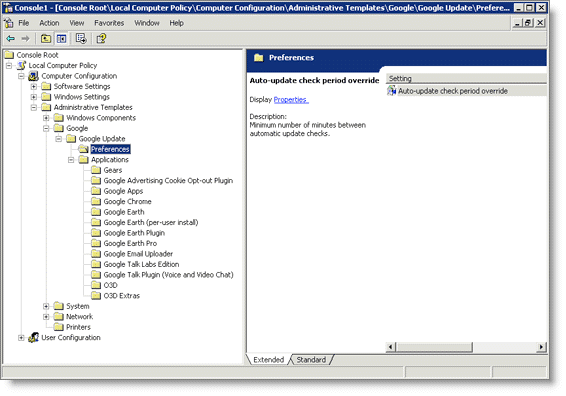
Step 4. Set the update check period.
  • Navigate to Administrative Templates > Google > Google Update > Preferences.
    Google Updater Configure Group Policy
  • Modify the Auto-update check period override property as shown or mark is a Disabled.
    Google Updater Configure Group Policy
If you want Disable Individual Google products. The Example below uses Google Chrome auto-updates as an Example.
Follow steps 1 and 2 in the first example if you haven’t imported the GoogleUpdate.adm template. Change the update policy override for Google Chrome:
  • Navigate to Administrative Templates > Google > Google Update > Applications > Google Chrome.
    Disable Google Chrome
  • Modify the Update policy override property as shown.
    Disable Google Chrome

Mac OS X GoogleSoftwareUpdateAgent and GoogleSoftwareUpdateDaemon

Remove GoogleSoftwareUpdateDaemon from the Mac OS X

  1. Uninstall any Google programs you currently have installed on your computer.
    Failing to uninstall your Google applications may cause these applications to work improperly and, in many cases, Google Software Update will be reinstalled after a few hours.
  2. Open a Terminal window by going to Applications > Utilities in Finder.
  3. Google Software Update can be uninstalled for a specific user or for your whole system. Paste one of the following commands in Terminal:
    • Uninstall for a specific user:Library/Google/GoogleSoftwareUpdate/GoogleSoftwareUpdate.bundle/Contents/Resources/GoogleSoftwareUpdateAgent.app/Contents/Resources/install.py –uninstall
    • Uninstall for the whole system: (needs root access)sudo /Library/Google/GoogleSoftwareUpdate/GoogleSoftwareUpdate.bundle/Contents/Resources/GoogleSoftwareUpdateAgent.app/Contents/Resources/install.py –uninstall
  4. After pasting the command, press Enter on your keyboard.
Google Software Update should now be uninstalled

Configure Google Updater for the Mac OS X

Update Frequency
To change how frequently Google Software Update checks for updates, execute the following in the Terminal application:
$ defaults write com.google.Keystone.Agent checkInterval
where is the elapsed time in seconds between update checks.
To disable Google Software Update from checking for updates, execute the following in the Terminal application:
$ defaults write com.google.Keystone.Agent checkInterval 0
Manual Updates
Google Software Update also provides a way to manually update all Google software on a user’s Mac. Here’s how:
  1. In Finder, select Go > Go to Folder.
  2. In the window that appears, enter one of the following locations. It’s expected that one of these folders won’t be found:
    • /Library/Google/GoogleSoftwareUpdate/GoogleSoftwareUpdate.bundle/Contents/Resources/
    • ~/Library/Google/GoogleSoftwareUpdate/GoogleSoftwareUpdate.bundle/Contents/Resources/
  3. In the folder that opens, double click the file named ‘CheckForUpdatesNow.command’.
Terminal will open to run the file. When you see the message ‘[Process completed]‘ you can close Terminal. Once this is done, your Google programs will be up to date.

How To Remove A Facebook Account

If you want to remove your Facebook account or Facebook profile you won’t find any option unless you know where to look for it. Facebook makes it really hard for you to remove your Facebook account. Deactivating and deleting a Facebook account are not the same. Deactivating only makes your Facebook Account Inactive and hides it from everyone, friends, once you login your Facebook account will get reactivated.

If you Deactivate your Facebook account.

  • Your profile and all information associated with it disappears from the Facebook service immediately.
  • People on Facebook will not be able to search for you or view any of your information.
  • We save your profile information (friends, photos, interests, etc.), just in case you want to come back to Facebook at some point. If you choose to reactivate your account, everything will look just the way it did when you left.
A lot of people deactivate their accounts for temporary reasons and expect their profiles to be there when they return to the service. This option gives you the flexibility to leave and come back whenever you want.

If you permanently remove Facebook Account.

  • You will not be able to regain access to your account again.
  • All personally identifiable information associated with it is removed from our database. This includes information like your name, email address, mailing address, and IM screen name.
  • Copies of some material (photos, notes, etc.) may remain in our servers for technical reasons, but this material is disassociated from any personal identifiers and completely inaccessible to other people using Facebook.

How To Permanently Delete A Facebook Account

  1. First log into your FaceBook Account
  2. Go to the Facebook help section, you can find it by looking for the link at the bottom of your Facebook Profile.  Or click here to access the Facebook Help Center http://www.facebook.com/help/.
    Search For Delete Facebook Search For Delete Facebook
  3. In the Help Center, you can type in Delete Facebook account into the search box at the top of the page and click Search. You will see a list of FAQ question, Search for the following question How do I permanently delete my account?“. Or you can access the page directly here http://www.facebook.com/help/?page=842
  4. You will see a list of FAQ option showing you how to deactivate your account or delete it permanently.
  5. Under the question How do I permanently delete my account?“. You’ll see an option and explanation to “permanently deleted with no option for recovery” with a link to request for deleting your facebook account https://www.facebook.com/help/contact.php?show_form=delete_account. You will be reminded that this is a permanent deletion and that your account cannot be reactivated and that none of the content or information you have added can be retrieved.
    Delete Your Facebook Account 
    Delete Your Facebook Account
  6. Click Submit. And follow the next steps and instruction, such as entering your password, email, and Captcha code.
    Permanently Delete Facebook Account 
    Permanently Delete Facebook Account
  7. Make sure you do not log in for the next 14 days after which your account will be deleted completely. If you change your mind or accidentally login before the 14 days period is up, your Facebook account will be reactivated.

How To Delete My Facebook Account

In the previous article we saw how to remove Facebook Account. If for some reason the instructions on how to delete the Facebook account did not work. Here is a check list of items to go through to ensure the success of deleting your Facebook account.

Remove all applications and Facebook Connect Websites.

You might be using external third party applications within facebook, example iPhoto, Zerply, etc also you would have linked your Facebook account to external website while commenting on articles or for using it for web based authentications all these applications can reactivate your Facebook account if you happen to use them knowingly or unknowingly since they are linked to your Facebook account automatically. The first step would be to remove and delink all these applications from your Facebook account.
  1. Login into Facebook and click on Account setting on the top right hand corner. Click Privacy Settings.
  2. At the bottom of Privacy Setting you’ll see “Apps And Websites” click on “Edit Your Settings”
  3. Under “Apps you use” Click on “Edit Settings”
    Privacy SettingPrivacy Setting
  4. Remove all the applications and websites that access your Facebook account.

Deleting Your Facebook Account

Once you’ve take the steps above you can follow the instruction given in Remove Facebook Account and then the following given below if that is not successful.
  1. The first step would be to email Facebook directly. Send an email to privacy@facebook.com and request that Facebook deletes your account.
  2. Wait  for a week to get an email response from Facebook confirming that your account has been permanently deleted.
  3. If you don’t hear from Facebook within a week, email them again. This time, email Facebook at privacy@facebook.com, but also send an email to support@facebook.com and one to info@facebook.com.
  4. Finally, attempt to log in to your account once you get an email from Facebook. If you’re unable to log in and don’t get a message asking you to reactivate your account, your Facebook account has been permanently deleted.

Delete History Firefox

Firefox is the second most popular browser next to Internet Explorer. Learn how to Delete History on Firefox when using it in a computer in a public place or internet cafe also take a look at Delete History Internet Explorer & Delete Google Chrome History.

Find Your Version of Firefox

To find your version of Firefox:
  • On Windows, click Help, then click About Mozilla Firefox.
  • On Mac OS X, click Firefox, then click About Mozilla Firefox.


Clear History On Firefox 4.0 & FireFox 3.5 for Windows and Mac

  1. In Firefox, click the Tools menu.
  2. Select Clear Recent History.
  3. Under “Time Range to Clear,” select Everything.
  4. Select all the Check Boxes espcially “Browsing & Download History”, “Form & Search History”, “Cache”, “Cookies” etc.
  5. Click Clear Now.

Delete History Firefox 3.0 for Windows & Mac

  1. In Firefox, click the Tools menu.
  2. Select Clear Private Data.
  3. Select all the Check Boxes espcially “Browsing & Download History”, “Form & Search History”, “Cache”, “Cookies” etc.
  4. Click Clear Private Data Now.

Unlimited Free International Calls & SMS After Activating Google Voice Outside US

Google Voice is a service that google provides in the US using which you can call any one for free in the US & Canada, but for people who are not in the US cannot use this service, I have outlined a workaround below to activate you google voice account outside the US or Canada. There are a couple of softwares you need before you can starting making free unlimited international Calls to the US & canada, or to send free SMS to any country in the world.
  1. You need a Google Voice Invite, there are only two ways to get this, either you get someone who already has a Google Voice to invite you or apply for an invitation to Google Voice service here https://services.google.com/fb/forms/googlevoiceinvite
  2. Hotspot shield, to access the google voice service you need use a US Proxy Address, otherwise you’ll see a message saying “Thanks for visiting Google Voice. We are not yet open for users outside the US.” so get http://www.hotspotshield.com/ or any other proxy service whose IP address belongs to the US.
  3. A SIP Client, the workaround involves you getting a US number for which you need a SIP client. I suggest X-lite Download it from here http://www.counterpath.com/x-lite-download.html ( Note: download X-lite Beta 4 if you are using a Mac OSX since I had no luck configuring X-lite 3.0 on the Mac)

Getting A Free US Number

  • Register for a free account at iptel.org http://serweb.iptel.org/user/reg/index.php
  • Using the the info from iptel.org register an account at register for a free USA DID with Ipkall here http://phone.ipkall.com/ setting are given below.
    1. Choose your account type: SIP
    2. Choose Area Code for your IPKall Number: Choose Any Number
    3. SIP Phone number: Your iptel.org User ID
    4. SIP Proxy: sip.iptel.org
    5. Email Address: Your Email address
    6. Password: Enter a Password
    7. # of Seconds to ring before hanging up: 120
  • You’ll get a email with a US Number note this down.

Setting For Your SIP Client ( x-lite ) Using iptel.org

After downloading X-lite 3.0 or 4.0 Beta you need to set it up with your iptel.org the setting are given below
  1. Display Name: Whatever you want
  2. User Name: Your iptel.org user ID example: clazh
  3. Password: Your iptel.org Password
  4. Authorization User Name: Your Iptel.org User ID@iptel.org example: clazh@iptel.org
  5. Domain: iptel.org
If you have entered your SIP settings correctly then you should be able to see Ready/available on your X-lite Screen depending on which version you are using.
Xlite iptel.org Settings

Activating The Google Voice Service Outside The US

Make sure your X-lite client is running and SIP account is active before you try to activate your Google Voice Service
Run HotSpot Shield or whatever US proxy number you are using and log on to http://www.google.com/voice
1. The frist screen show you an option to choose any Google Voice US number of your choice. (You can’t change the number later so choose carefully)
Choose A Google Voice NumberChoose A Google Voice Number
2. You’ll be asked to choose a PIN to access your voice mail
Choose A Google Voice PINChoose A Google Voice PIN
3. You need to enter the US Phone number that IPKALL provided for you.
Enter A Forwarding Number (IPKall Number)Enter A Forwarding Number (IPKall Number)
4. The last step requires you to verify your IPKALL Number, make sure you have x-lite configured and running, now just click Call Me Now
Verify Google Voice Verify Google Voice
5. If you have configured your x-lite correctly it should now ring just enter the two digit number show into the dial pad.
Thats it you are done. You don’t need to use HotSpot Shield any more just log into Google Voice and dial any US number always make sure X-lite is running, since it acts as a proxy number, X-lite will ring just pick up the call and start talking.
You can find a full list of SIP Clients here http://en.wikipedia.org/wiki/List_of_SIP_software
if you are using the iPhone or android you can use Nimbuzz
Credit http://www.how-to-hide-ip.info/ for the Google Voice activation images.

Delete History Internet Explorer

Internet Explorer, IE is the most widely used browser with almost 70% of the Browser Market Place. It is installed by default on the Windows Operating System hence most users are forced to use it. Most internet cafes, new laptops, desktops etc have it installed by default. If you want to protect your privacy while using public systems then this article will teach you how to Delete History On Internet Explorer.

Find your version of Internet Explorer

To find your version of Internet Explorer, click Help, then select About Internet Explorer. If you don’t see the Help menu, press Alt to show the menus.

How To Delete History Internet Explorer

Delete History On Internet Explorer 9.0

  1. In Internet Explorer 9, click Tools. If you don’t see the menu, press Alt on your keyboard to show menus.
  2. Click Delete.
  3. Select all the checkboxs especially “Temporary Internet Files”, “Cookies”, “History”, “Form Data” etc
  4. Click Delete.
  5. It can take several minutes for the cache history to be deleted. Once the files have been deleted, click Okay.

Delete History, Cache, Cookies in Internet Explorer 8.0

Delete History IE 8Delete History IE 8
  1. In Internet Explorer, click Tools. If you don’t see the menu, press Alt on your keyboard to show menus.
  2. Select Delete Browsing History.
  3. Select all the checkboxs especially “Temporary Internet Files”, “Cookies”, “History”, “Form Data” etc
  4. Click Delete.
  5. It can take several minutes for the cache history to be deleted. Once the files have been deleted, click Okay.

Deleting History In Internet Explorer 7.0

  1. In Internet Explorer, click Tools. If you don’t see the menu, press Alt on your keyboard to show menus.
  2. Select Delete Browsing History.
  3. Click Delete All.
  4. Click Yes in the confirmation window.
  5. Click Close.

Clear Cache and History on Internet Explorer 6.0

  1. In Internet Explorer, click the Tools menu.
  2. Select Internet Options.
  3. Click the General tab.
  4. Click Delete Files and Clear History
  5. Click OK in the confirmation window.
  6. Click OK to close the “Internet Options” window.

VOB Files, What is a VOB File? How Do I Open A VOB File?

The VOB file type is primarily associated with “DVD Video Movie Files“. A VOB is the Abbreviation for Video OBject it contains several streams i.e Video, Audio and Subtitles multiplexed together. VOB is based on the MPEG program stream format, but with additional limitations and specifications in the private streams.
On the DVD, all the content for one title set (VTS) is contiguous, but broken up into 1 GB VOB files in the computer compatible file systems for the convenience of the various operating systems. Each VOB file must be less than or equal to one GiB .

If you cannot access VOB files on windows?

When windows gives you an error message saying that it “Cannot open VOB files”, this means either:
  • A. You need to a program that can open the file
  • B. Or your registry may be damaged
To play the VOB files on your computer or operating system, you need to install a video player that supports and plays VOB format.

Below are a list of Free Video Software that can play VOB Files.

VLC or Video Lan Player

Download VLC Player, it is available for both Windows and Mac http://www.videolan.org/vlc/
VLC is a free and open source cross-platform multimedia player and framework that plays most multimedia files as well as DVD, Audio CD, VCD, and various streaming protocols.

Miro

Download Miro Available for both Windows and MAC http://www.getmiro.com/
Miro is a free HD video player. It can play almost any video file and offers over 6,000 free internet TV shows and video podcasts. Miro has a simple, gorgeous interface designed for fullscreen HD video. Since Miro downloads most videos, you can take your shows with you, even on an airplane. Quite simply, Miro is a better way to watch all the video you care about. Best of all, Miro is 100% free and open source, developed by a non-profit organization and volunteers around the world.

UMPlayer

Download UMPlayer http://www.umplayer.com/
UMPlayer is the multimedia player that fills all your needs. With dozens of advanced features and built-in codecs it can handle any media format, and can play Audio CDs, DVDs, (S)VCDs, TV / Radio cards, YouTubeTM and SHOUTcastTM streams and even incomplete or damaged media files.

Copying VOB DVD Files.

If you want to copy the DVD files to your Hardisk to play it later you can copy the VOB file from the DVD. Open the DVD in Windows Explorer or Finder on a MAC. The VOB file be in a folder called VIDEO_TS.  You’ll also see other files Like IFO, BUP. The IFO files are the information files containing meta data about the DVD and instructions for the DVD player on how to handle the disc. The BUP file is simply a backup copy of IFO files.

Best Free VPN Clients to surf anonymously, protect your privacy, access blocked sites

VPN is the abbreviation of  virtual private network (VPN). It is a computer network made up of public networks, wires, Internet to provide individuals or corporates to remotely get secure access to their organization’s network. A VPN network uses encryption and other security mechanisms to ensure that only authorised users can access the network and that the data cannot be intercepted. Instead of using proxy sites to unblock blocked sites.
VPN Networks have started to become more important these days, due to various factors like, Privacy  & Tracking,  Internet Censorship, Blocked access to websites and social networks like Facebook, Orkut, Hi5 etc which are not accessible in Schools, Colleges, and Corporate Companies. Since the data is encrypted on a VPN network it helps to maintain the Privacy of the individuals using the VPN network. Using proxy websites are harmful to user privacy and poses of risk of hacking.
VPN NetworkHow a VPN Network works
Below are a list of some of the most popular and Free VPN networks and proxy sites which are well used and trusted.

Hotspot Shield

Download Hotspot Shield at http://hotspotshield.com/
One of the best Free VPN with unlimited usage.
  • Secure your web session, data, online shopping, and personal information online with HTTPS encryption.
  • Protect yourself from identity theft online.
  • Hide your IP address for your privacy online.
  • Access all content privately without censorship; bypass firewalls.
  • Protect yourself from snoopers at Wi-Fi hotspots, hotels, airports, corporate offices.
Works on wireless and wired connections alike. Provides Unlimited Bandwidth.
Works on the PC and the MAC, including new operating systems (Windows 7 and Snow Leopard)
Hotspot Shield protects your entire web surfing session; securing your connection at both your home Internet network & Public Internet networks (both wired and wireless). Hotspot Shield protects your identity by ensuring that all web transactions (shopping, filling out forms, downloads) are secured through HTTPS. Hotspot Shield also makes you private online making your identity invisible to third party websites and ISP’s. Unless you choose to sign into a certain site, you will be anonymous for your entire web session with Hotspot Shield. We love the web because of the freedom that it creates to explore, organize, and communicate. Hotspot Shield enables access to all information online, providing freedom to access all web content freely and securely. Secure your entire web session and ensure your privacy online; your passwords, credit card numbers, and all of your data is secured with Hotspot Shield. Standard antivirus software protects your computer, but not your web activities.

CyberGhost VPN

CyberGhost is an important tool for protecting your privacy. CyberGhost VPN replaces the externally visible IP address, which users have received from their provider when they dial up to connect to the Internet, with a CyberGhost VPN IP address. The CyberGhost user shares this IP address with a number of other users. This procedure ensures that the CyberGhost VPN IP address should not be assigned to one particular CyberGhost VPN user. Communication between the CyberGhost VPN user’s computer and the anonymization servers is also particularly well protected to prevent any eavesdropping on data transfers. This protection is set up in 2 steps when establishing the connection. 1024-bit SSL encryption is used when establishing the connection. In this case, a 128-bit AES key is negotiated, which is unique for each connection. The actual communication takes place via this AES key.

ExpatShield

Download ExpatShield at http://www.expatshield.com/
  • Maintain Your Privacy : Browse anonymously and take full control over who can see your personal information. Examples of information that ExpatShield protects are your name, location, browsing history, and searches you perform online.
  • Protect Your Identity : Prevent online thieves and hackers from getting access to your private data (e.g. Credit Cards, Emails, Social Security Numbers, etc.). Secure your Internet Connection (Home, Work, Wi-Fi Hotspots, Cable).
  • Access Your Favorite Websites : Facebook, Twitter, Youtube
Get a UK IP and access content available only in UK from anywhere. Ensure complete freedom to access all information and content online.

Project Loki

Download Project Loki at http://www.projectloki.com/
Project Loki can help you to hide and secure your traffic from inspection and to hide your IP address from sites you visit using our free Public VPN Service based on set of Loki VPN Servers located in different countries.
  • You can hide and secure all your Internet activities. e.g. browsing, FTP, web email, chat and do not change your local network activity.
  • You can secure and hide only one network service, e.g. secure ftp or web browsing and to left another network services without any changes. By this way you can hide also opportunity to hide and secure any activity because your system administrator or Internet Service Provider will see a lot of open traffic and a little bit connection to our server through https protocol.
  • You can hide and secure only one application, e. g. secure ICQ Messanger and to left all another network traffic without any changes. If ICQ service is restricted in your office network, you will be able to use ICQ through our free VPN service.
  • You can browser Internet from IP address of our server and could use local network services available only for computer located in special country. For example, you can see USA online TV channels using connection to our public server located in USA.
  • You can see a lot of Web pages and to use Internet services that is restricted by your governement.

ProXPN

Download ProXPN at http://proxpn.com/
ProXPN is a free VPN service which can be used both on Windows and Mac computers. Download ProXPN which is free application from which to connect. This service is also compatible with the iPhone and other mobile phones that support VPN.

OpenVPN

Download OpenVPN at http://openvpn.net/
Open VPN is one of the most popular Free VPN, OpenVPN Technologies is a privately held company based in the Pleasanton, California, integrating a suite of leading-edge networking and software technologies. OpenVPN Technologies has designed and deployed a virtual network software that provides secure, reliable, and scalable communication services, not only fulfilling the requirements of the traditional virtual private network (VPN) market, but also addressing the demands of next wave web-scale VPN services.

GPass

Download GPass Software at http://gpass1.com/gpass/
  • Support for streaming audio/video, email, instant messaging, download managers, as well as web surfing
  • Encrypted socks tunnels and backup tunnels using Skype and Tor
  • Integrated application firewall
  • Green and free software: copy and run without installation

MacroVPN

Download MacroVPN at http://www.macrovpn.com/
MacroVPN provides a Free VPN service with servers all over the world, although on the website it says trial version you are allowed to use 2GB traffic and 256kbps speed.

AlwaysVPN

padlock AlwaysVPN is a hosted virtual private network. Our service creates an encrypted link between your computer and our servers and then forwards all of your internet traffic through this link.
Below are a few example uses for our service:
  • Prevent local eavesdroppers from listening in on your web communication.
  • Bypass restrictive firewalls.
  • Access US only web content.
    (Hulu, ABC and other video networks are blocking our IP addresses.
    Please contact us for more details)
  • Bypass Government web content filtering.

UltraVPN

Download UltraVPN at https://www.ultravpn.fr/
UltraVPN is a client/server SSL VPN solution based on OpenVPN. It encrypts and anonymizes your network connection. UltraVPN is a simple user interface to connect or disconnect to our VPN servers. To use UltraVPN, you need to right click on a traybar icon (on the bottom right of your screen) that looks like a computer with a red screen. After right clicking on it, choose “connect”.

USA IP

USA IP is a paid site but you can use it for free without registering download the VPN client from the website, access the USA IP free VPN services with the username demo and the password demo. The VPN Client will disconnect after every 7 minutes after which you’ll need to reconnect again.
Follow the QUICKSTART guide below to start the connection tool (or manually set up the VPN connection using one of the tutorials).
Log in as:
USERNAME: demo
PASSWORD: demo
The free demo account is provided as a means to test our service with your ISP, internet connection and computer before purchse and may be limited in speed. The demo access is unlmited in time but you are required to reconnect after every 7 minutes.

SecurityKISS Tunnel

Download SecurityKISS at http://www.securitykiss.com/sk/
SecurityKISS Tunnel redirects all your online traffic through an impenetrable tunnel to our security gateway.
Everything in the tunnel is encrypted so you can:
  • Ensure your passwords, credit card numbers, online shopping and all of your data is secured
  • Protect yourself from snoopers at Wireless hotspots, hotels, airports, corporate offices
  • Protect your data from being intercepted by various network sniffers
  • Protect yourself from identity theft online
  • Bypass Blocking, Filtering and Monitoring
  • Access blocked websites from your office (YouTube, Flickr, gambling, blog sites, ICQ, email, chat)
  • Unrestricted access to TV streams, Radio streams and others
  • Use Skype and other VoIP even if it is blocked or distorted by your Internet Provider
  • Avoid being identified by anyone including governments
  • Access all content privately without censorship
  • Unblock all ports with no configuration
  • Unrestricted access for international users blocked by government control
Full Anonymity
  • Protect your identity online by hiding your real IP address
  • Assign your computer a new European IP address
  • Hide your online activities from your boss, children and spouse
Traffic compression guarantees high-speed access to any site or service. Support for all applications on your computer – they are not aware of the tunnel

ItsHidden

Download ItsHidden at http://itshidden.com/
ItsHidden.com is the ultimate surfing privacy service on the Internet with huge capacity and no complicated software to install, you already have everything you need on your computer right now! ItsHidden.com is fast and reliable with over 7 Gigabits of Dedicated Bandwidth
  • Dedicated IP addresses for full Port Forwarding, no configuration required
  • Super low user/server ratio meaning lightning download speeds
  • Instant access
  • Total Privacy, no records of your surfing are kept by us
  • No Software is needed
  • 128 Bit Secure Connection to ensure privacy over all networks
List of other free VPN Services Online